
How to change a date or name in a PDF
Open the PDF in Glyphwell, click the line with the date or name, type the new one and press Enter, then download. It's drawn in the document's own font, size and color. If the name comes up many times, Find and replace changes them all at once. It's free, and the file stays on your device.
Step by step
- Open the PDF. Drop it on the Glyphwell home page, or choose it from your files. It opens in your browser and isn't uploaded anywhere.
- Click the line with the date or name. The line opens as a text box. Change only what needs changing; the rest of the line stays as it was.
- Type the new date or name and press Enter.
- If it appears more than once, choose Find and replace in the toolbar (or press Ctrl+F, or ⌘F on a Mac) instead, type the old text and the new, and choose Replace all. Every page is changed in one step, and one Undo takes it all back.
- Check the status bar, then download. It says how each change was made, or why one couldn't be. The download is saved as a whole new file, so the old date or name isn't left hidden inside it.
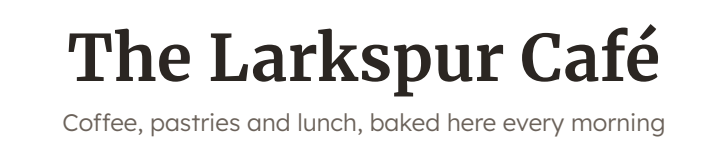
An example: a new name and a closing date
Before
After
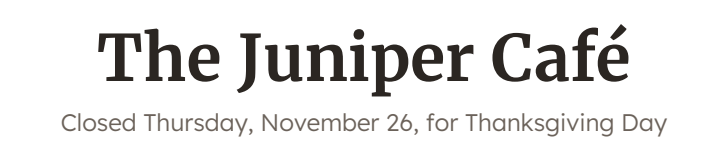
The new name is shorter, so the heading moved over to stay centered. Neither line's letters were all in the file: "Juniper" needed a "J", and the date needed "T", "N" and a "6". Glyphwell copied each of them in from the same fonts. There's more on that in how to change text in a PDF and keep the font.
What to watch for with dates and names
- New digits and letters. A PDF usually holds only the characters it already uses, so a 2025 that becomes a 2026, or a name with a new initial, needs characters the file doesn't have. Glyphwell adds them in the same font when it carries that font, or else from the closest match it has, and the status bar says so.
- Longer or shorter text. "May 9" to "September 30" needs more room. Glyphwell uses the space at the end of the line first, then rewraps the paragraph, and only then sets the letters a little closer. A centered name stays centered, judged by the lines around it or, for a line on its own, by the page.
- The same date written two ways. Find ignores upper and lower case, but "11/26/2025" and "November 26, 2025" are different text. Search for each way the document writes it, and check the header and footer.
- Names in more than one place. A name in a signature block, a header and the body is easy to miss. Replace all shows how many matches it changed.
What it can't do yet
- Scanned pages. A page that is a picture of text has no text to edit. Editing scanned PDFs is coming later; the home page has a "Tell me when it's ready" button.
- Fillable forms. A name typed into a form's boxes is stored in the form, not on the page, and Glyphwell doesn't edit form fields yet.
- Fonts whose license forbids changes. Some fonts allow a PDF to be viewed and printed but not edited. Glyphwell refuses those edits instead of quietly swapping the font.
- Protected and very large files. A PDF that needs a password to open, or whose permissions don't allow changes, can't be edited. Files over 100 MB can't be opened for now.
Questions people ask
Is it really free?
Yes. Editing is free with no limits, no account and no card.
Can I change the date on a signed PDF?
Changing a digitally signed PDF breaks its signature, so the signer would have to sign it again. Glyphwell tells you when a file you open is signed. If it's an agreement with someone else, ask them for an updated copy.
Can I change a name on every page at once?
Yes. Find and replace changes every match in the document as one step, and one Undo takes it all back.
Is my PDF uploaded?
No. It's opened, edited and saved by your browser, on your device. See the privacy page for the little that is counted.