
How to change text in a PDF and keep the same font
Open the PDF in Glyphwell, click the line you want to change, type the new text and press Enter, then download. The new text is drawn in the PDF's own font and color, so it matches the rest of the page. It's free, there's nothing to install, and the file never leaves your device.
Step by step
- Open the PDF. Drop it on the Glyphwell home page, or choose it from your files. It opens in your browser and isn't uploaded anywhere.
- Click the line you want to change. The line opens as a text box.
- Type the new text and press Enter. To change a word everywhere, choose Find and replace in the toolbar instead (or press Ctrl+F, or ⌘F on a Mac).
- Read the status bar. It says how the change was made, for example "Edit made in the original font", or why it couldn't be.
- Download. You get your PDF with the change in it. The rest of the file is left as it was. Undo is there if you change your mind first.
An example: a handwritten menu special
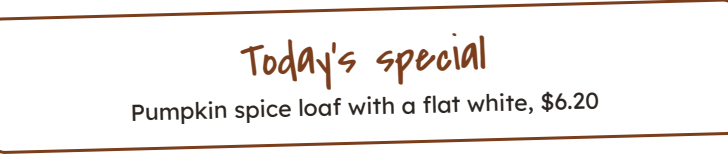
Before
After
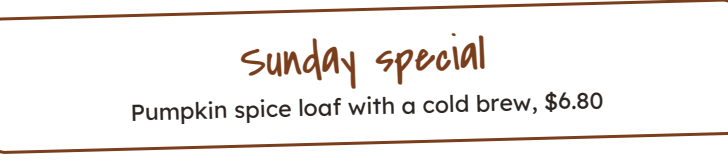
That box is a good test, because a handwriting font is easy to spot when it's swapped for another. The file only held the letters the original words used, so "S", "u" and "n" weren't in it. Glyphwell carries that font, so it copied the three letters in from it. The price line needed four new characters, filled in the same way.
Why edited text often comes out in a different font
Most PDFs don't contain whole fonts. To keep files small, they hold just the letters the document uses, a subset. When an editor needs a letter that isn't there, the easy way out is to set the whole line in a standard font such as Arial or Helvetica. That's why a changed name or date can stand out from the rest of the page.
Glyphwell keeps the PDF's own font and adds only the letters it's missing. It takes them from the same font when it carries it (a set of common free fonts), or else from the closest match it has, and the status bar tells you when that happened.
When the new text is longer
A longer replacement needs room. Glyphwell tries these in order:
- the free space at the end of the line;
- rewrapping the paragraph, moving the lines below it down (onto the next page if needed);
- in a table, wrapping the text inside its cell;
- setting the letters a little closer, or making the text a little narrower or smaller.
If none of these is enough, it says the text is too long rather than letting it run over other text.
What it can't do yet
- Scanned pages. A page that is a picture of text has no text to edit. Editing scanned PDFs is coming later; the home page has a "Tell me when it's ready" button.
- Fonts whose license forbids changes. Some fonts allow a PDF to be viewed and printed but not edited. Glyphwell refuses those edits instead of quietly swapping the font.
- Protected and very large files. A PDF that needs a password to open, or whose permissions don't allow changes, can't be edited. Files over 100 MB can't be opened for now.
Questions people ask
Is it really free?
Yes. Editing is free with no limits, no account and no card.
Is my PDF uploaded?
No. It's opened, edited and saved by your browser, on your device. See the privacy page for the little that is counted.
Does it work on a phone?
Yes, in your phone's browser. The editor makes room for the page on small screens; tap a line to edit it.
Can I change a word everywhere at once?
Yes. Find and replace changes every match in the document, and one Undo takes it all back. See how to change a date or name in a PDF.
Why can't I click the text on my PDF?
It's probably a scanned page, a picture of the text. Glyphwell tells you when a page is scanned.